DevelopmentUpdated 2 min read
The WordPress block editor: a practical starting point
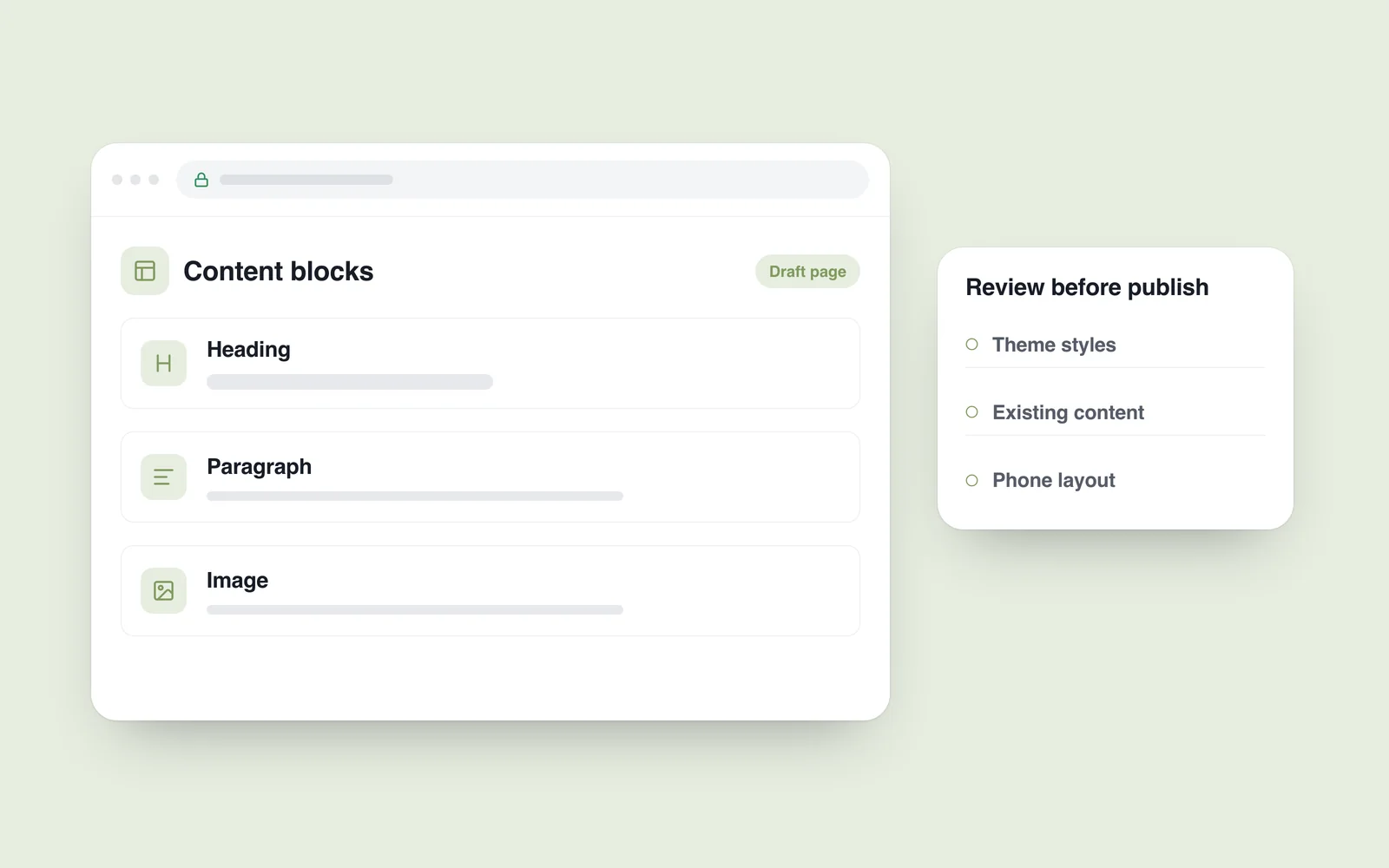
WordPress 5.0 introduced the block editor in December 2018. Paragraphs, images and other content became individually manageable blocks. For an existing site at the start of 2019, the practical question was how this new workflow would fit its pages and editorial team.
The official WordPress 5.0 announcement describes that approach. The change concerned content editing; it should not be mistaken for automatic visual control of every part of the website.
Start with an actual page
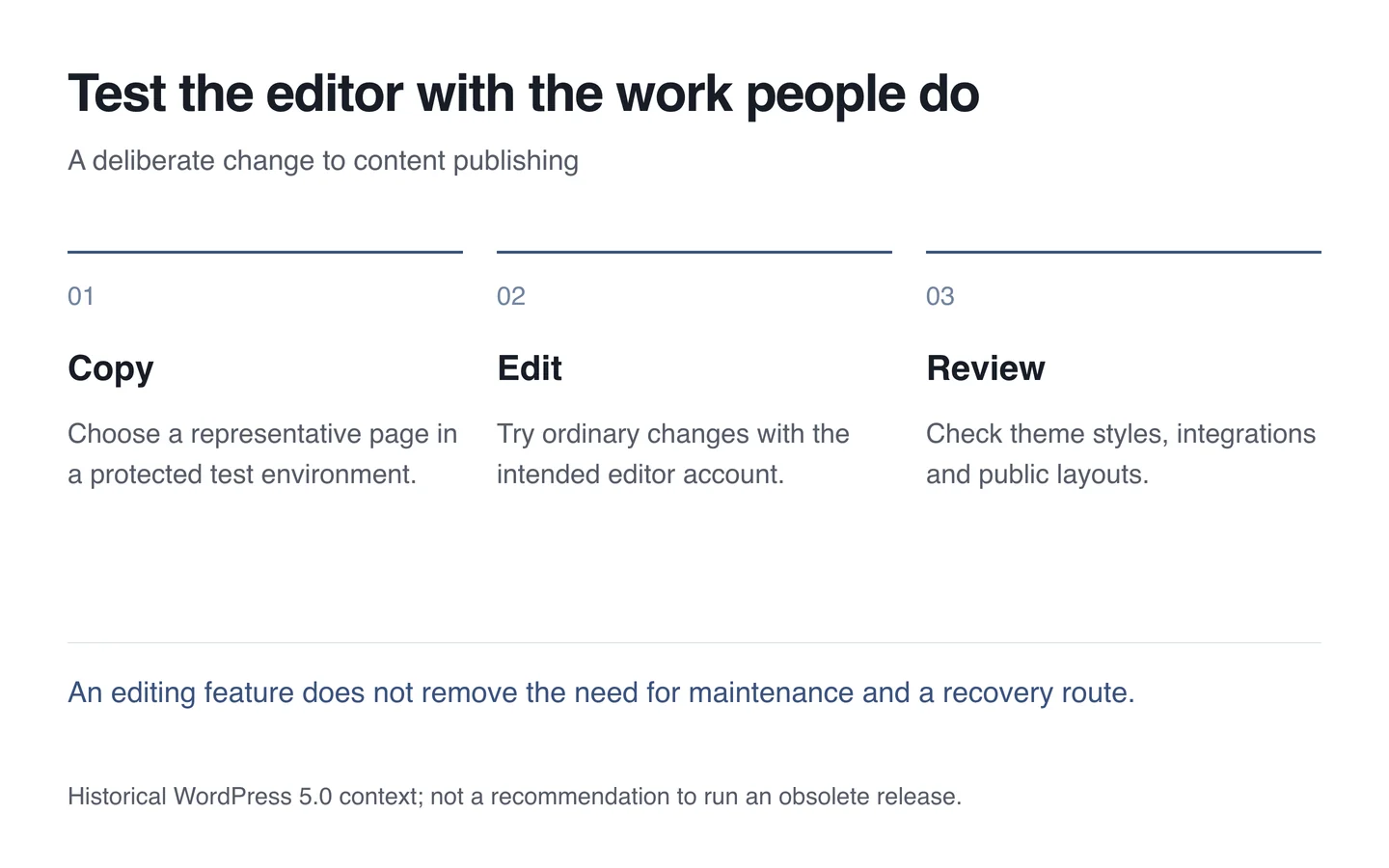
Select a page containing text, images and links. Open a copy in a protected test environment and perform an ordinary editing task. Compare the published appearance before and after the change.
Pay attention to theme styles: headings, lists, spacing and image sizes. A tidy editor view does not establish that the result works on a phone. Check existing extensions and custom fields separately.
Match flexibility to the editorial task
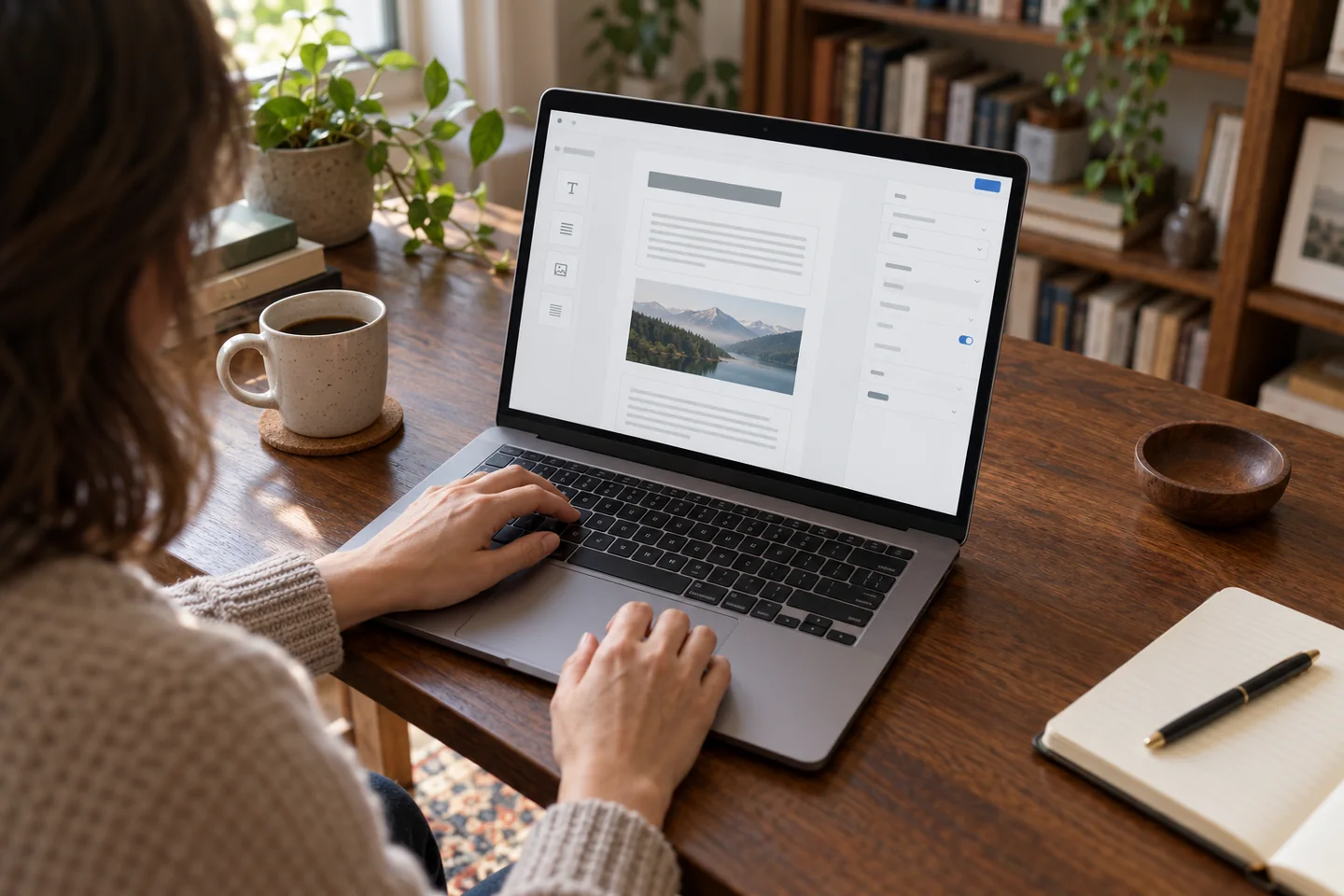
An employee publishing news may need a standard heading, text and an image. Offering dozens of unrestricted layout choices can reduce consistency. Agree which elements are available and how the team should use them.
Build a short guide around a real example: replacing a photograph, adding a link and checking preview. Distinguish publication permissions from system administration. A practical rehearsal teaches more than a long feature list.
Preserve a recovery route
- Prepare recovery for the working pages and necessary data.
- Try typical content and existing extensions.
- Check editing with realistic user permissions.
- Review desktop and phone layouts.
- Release deliberately and revisit the public page.
This historical change is not a recommendation to remain on an outdated release. Maintaining updates, compatibility and recovery requires its own work. When building a WordPress site, include the real editorial process in the project scope.