Design4 min read
Mobile contact forms: make them easier to complete
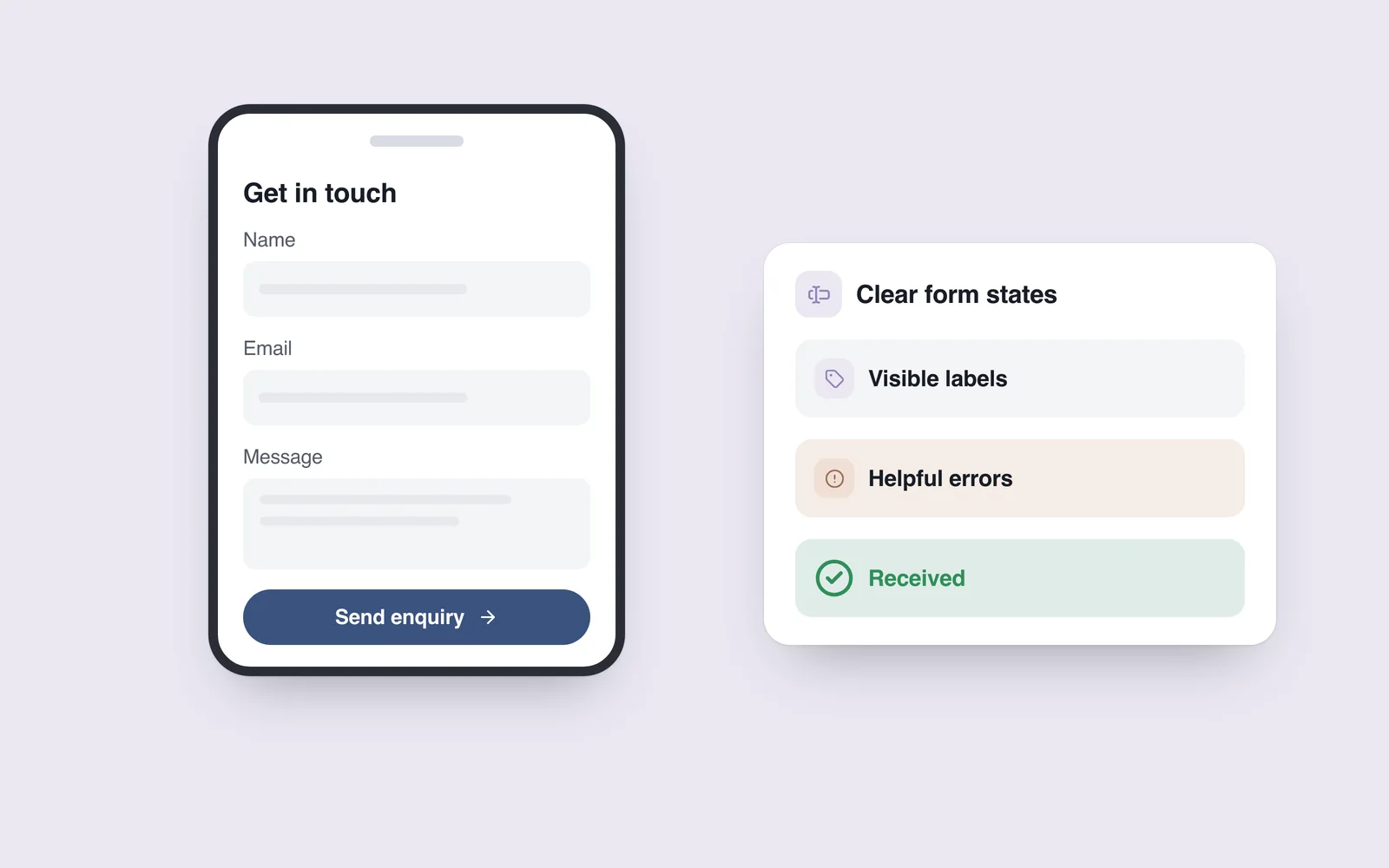
A visitor wants a quote from their phone. Ten fields are required, the phone field opens a letter keyboard, and submitting the form produces nothing but a red outline. The friction is often in the form itself.
A useful contact form explains what to enter, how to correct a mistake and when submission has finished. On mobile, the keyboard covers part of the screen, fewer fields are visible and every additional typing task asks for more effort.
Give every field a reason to exist
Ask whether the team genuinely needs this answer before the first conversation. If it can wait, remove the field or make it optional. A quote request does not always need a full business address, employee count and several contact methods at once.
The W3C WAI forms tutorial recommends simple, short forms that request only necessary information. This does not make one length right for every task: placing an order and requesting a brief consultation involve different needs.
A single column is usually a sensible starting point. Let the order follow the conversation: what you need, how we can contact you and any useful context. Identify optional fields in their labels.

Keep the label visible after typing begins
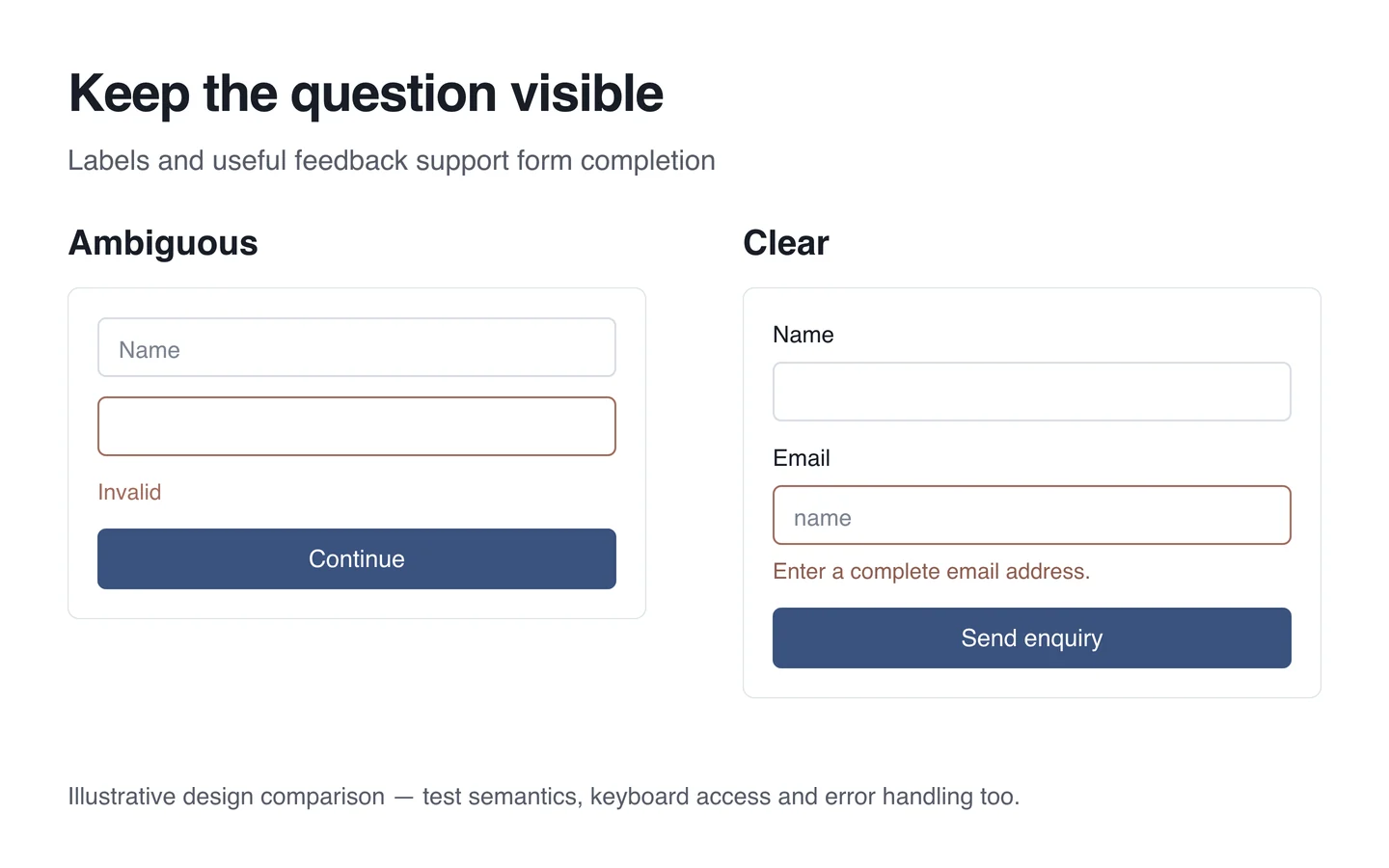
A hint inside a field disappears when someone types. That leaves them trying to remember exactly what the question was. A persistent label keeps the purpose visible throughout the task.
The WAI guidance on labels also explains the programmatic association between a control and its label. That connection helps assistive technology announce the right information; an attractive layout alone does not establish that it exists.
Use the appropriate email and telephone input types, and provide autocomplete hints for recognised personal-information fields. Keyboards differ across browsers and devices, so verify the behaviour on a real phone. Avoid rejecting international phone formats through an unnecessarily restrictive rule.
Make errors useful to the person fixing them
“Invalid” provides little help. “Enter a complete email address, such as name@example.com” gives someone a way forward. Put the explanation near its field, and do not rely on a red colour alone to communicate the error.
The WCAG 2.2 error-identification criterion calls for a detected error to be described in text. This is one requirement, not a complete accessibility assessment of a form.
Preserve ordinary valid entries when another field fails. Someone should not have to retype their entire message. Passwords, payment details and other sensitive fields need their own handling rules.
Distinguish sending, success and failure
A label such as “Send enquiry” describes the action more clearly than “Continue” when no further step follows. After a tap, show that the request is being submitted. Confirm success only after the server accepts it.
If connectivity fails or the server cannot respond, do not show a false success message. Provide a retry and, where useful, another contact route. The sending state should also help manage repeated taps.
Test the keyboard, zoom and real copy
Go beyond the design file. Open the working form on a phone: is the active field visible while the keyboard is open? Can the action button be reached? Does a long Georgian error message remain readable when text is enlarged? Check the English version with its actual copy as well.
Navigate the desktop form by keyboard and try representative mobile sizes and devices. Have a colleague process a test enquiry from end to end. Clear visual feedback does not automatically establish reliable delivery.
Make improvements in a useful order
- Remove unnecessary required questions.
- Provide clear persistent labels and appropriate input types.
- Write errors that explain how to recover.
- Separate progress, success and failure states.
- Complete the real task on an actual device.
When reviewing UI/UX design or improving an existing form, begin with a concrete question: can someone send an enquiry independently, without uncertainty about what happened?